How to set up Microsoft Outlook for your mailbox on our server.
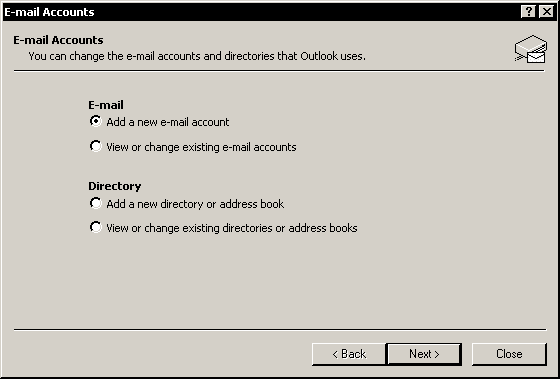
Start 'Microsoft Outlook'. In the menu choose Tools and go in E-mail Accounts... branch.
Put a tick before line Add a new e-mail account and press Next button.
Put a tick before line POP3 and again press Next button.
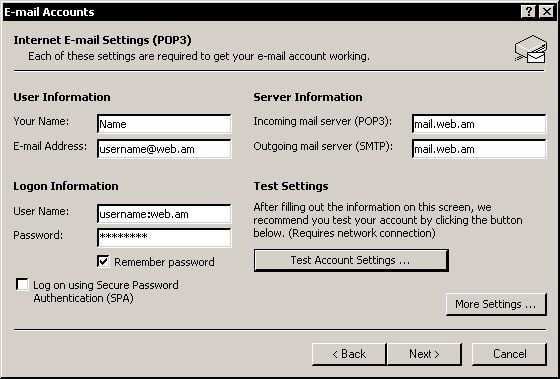
In field Your Name type your name, in field E-mail address: enter yours e-mail (on the given example - username@web.am).
In fields Incoming mail server (POP3): and Outgoing mail server (SMTP): enter mail.web.am.
In field User Name type your user name for E-mail (in the given example - username) and after a name add :web.am.
In field Password: enter your password. Again press Next button.
Press Finish button, for confirmation of your actions.


 Printable version Language: English | Русский